A screen recorder with a teleprompter built in.
Pacedot records your screen and camera on Windows while a teleprompter only you can see guides your delivery. When you stop, it cuts the ums and restarts, adds captions, and tells you which part to retake.
Why tutorials sound flat
Recording a tutorial means doing three things at once: operating the software, remembering what to say, and saying it well. Most people either improvise and fill the gaps with ums, or read a script and sound like they are reading. Then they spend longer editing than recording.
How Pacedot handles a tutorial
- Script with the Tutorial style. Cue marks add pauses between steps, slow you down on technical terms, and stress the actions to take.
- Record screen and camera together. The prompter floats over the app you are demonstrating and never appears in the recording. Computer sound is optional.
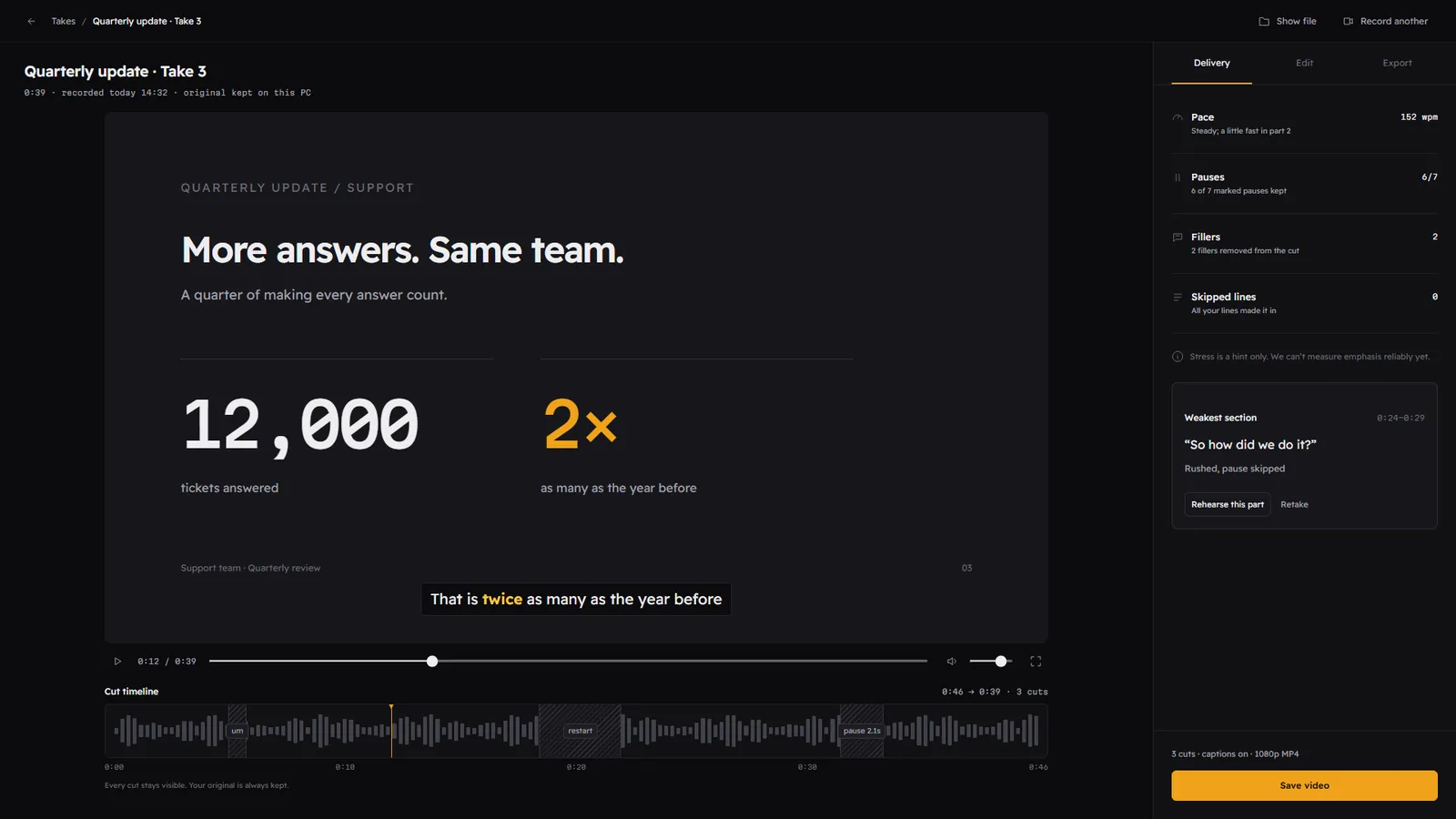
- Get an edited take. On-device speech recognition cuts the fillers, false starts and long silences, and adds captions.
- Retake only the weak part. The delivery panel points to your weakest section, so you redo one paragraph instead of the whole video.
A filler, a false start and a long pause, found and cut on your PC. Every cut stays visible and your original is always kept.
Exports for every platform
Save the finished video in 16:9 for YouTube or a course platform, 9:16 for Shorts and Reels, or 1:1, as MP4 or MOV, with captions burned in or as an SRT file. The original recording is always kept on your PC.
Last updated 2026-10-26
Questions
Can I record only my screen, or only my voice?
Does the automatic cut delete anything?
Do I need an editing app afterwards?
Keep reading
Read like a pro. Nobody sees the script.
Join the waitlist for the free beta on the Microsoft Store, and lock in the founding price before Premium launches.
Free during the beta. The first 500 sign-ups get Premium for $49 for the first year. One email when the beta opens, no spam. Privacy