An invisible teleprompter for Zoom and Teams.
Pacedot keeps your script on your screen and out of the call. The prompter is hidden from Zoom, Teams and Google Meet screen sharing on Windows, so you can place it right under your webcam and keep eye contact.
Why a teleprompter on calls is tricky
On a video call you usually share your screen, and anything on that screen is shared too. A normal teleprompter window either shows up for everyone, or has to sit on a second monitor where your eyes drift away from the camera. Reading from notes on paper has the same problem.
Pacedot solves both: the prompter is excluded from capture, so you can put it right under your webcam on the screen you are sharing.
Set it up for Zoom
- Open your script in Pacedot and start the prompter. Drag it just below your webcam and make it narrow.
- In Zoom, share your whole screen or a window as usual.
- Check the preview: your slides or app show, and the prompter does not.
- Pick Voice pacing, so the script moves when you speak and waits for questions.
Set it up for Microsoft Teams
- Start the prompter in Pacedot and place it under your camera.
- In Teams, choose Share, then your screen or window.
- Present. The prompter, its controls and your notes stay on your side only.
The same applies to Google Meet in Chrome or Edge, Webex and other apps that capture the screen through Windows.
Live calls without a script
Not every call is scripted. Notes mode gives you a private deck of talking points, one card at a time, hidden from capture like the prompter. Use it for sales demos, interviews and all-hands updates where you want to sound natural but not forget the key numbers.
Practice before the call
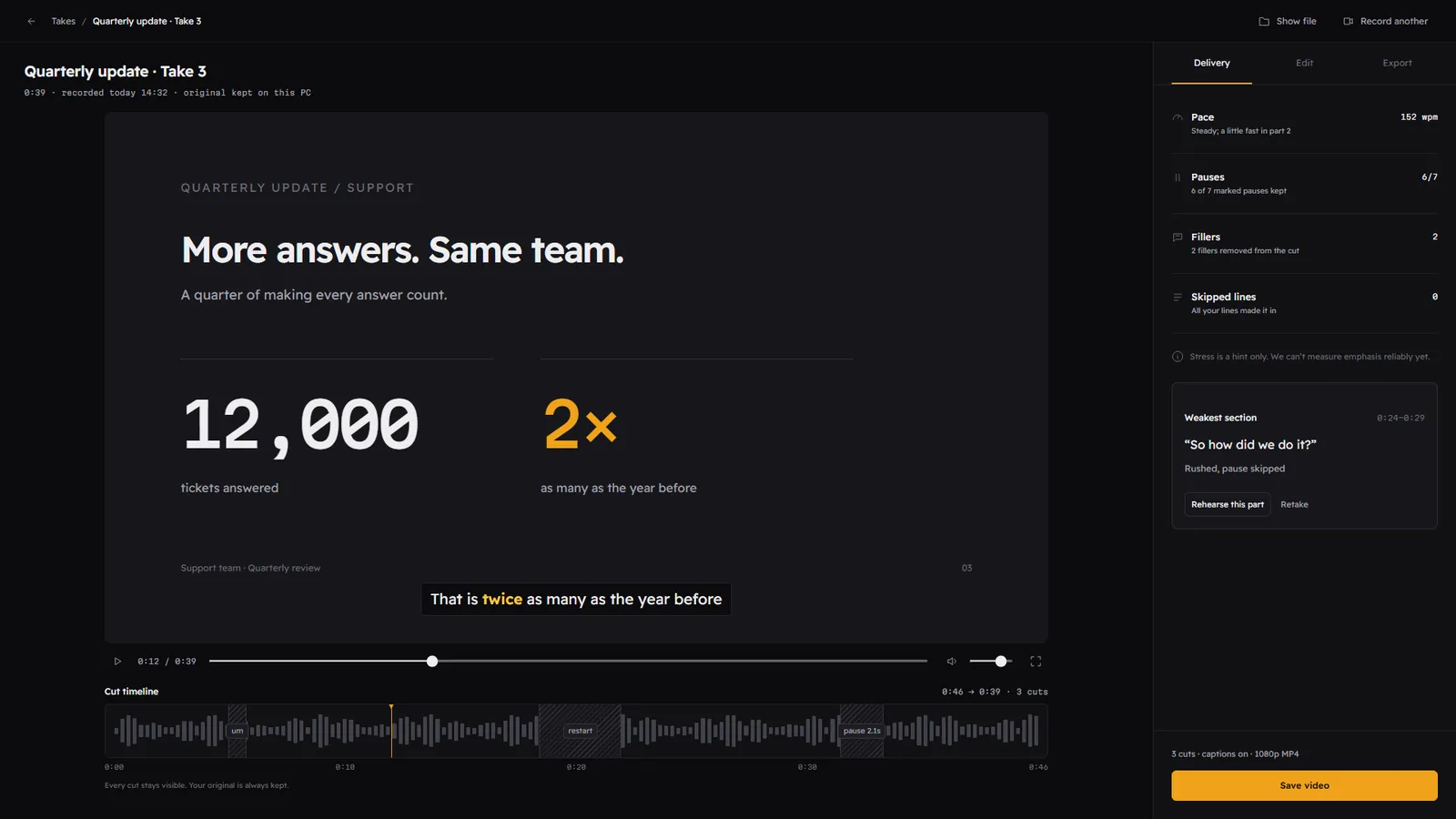
Record a quick practice take in Pacedot first. You will see your pace in words per minute, which pauses you skipped, how many filler words you used, and which section was weakest, so you can rehearse just that part.
Last updated 2026-10-26
Questions
Will people on the call see the teleprompter?
Does it work if I only share one window?
Can people tell I am reading?
Keep reading
Read like a pro. Nobody sees the script.
Join the waitlist for the free beta on the Microsoft Store, and lock in the founding price before Premium launches.
Free during the beta. The first 500 sign-ups get Premium for $49 for the first year. One email when the beta opens, no spam. Privacy